By David Khachatryan · Guidance updated
Best Laptops for Perplexity AI in 2026: AI-Powered Research Made Fast
Best laptops for Perplexity AI in 2026. The AI search engine for researchers and professionals — here's the hardware that keeps your research flowing.
Perplexity AI has replaced traditional search for a growing number of researchers, analysts, and knowledge workers. Instead of scanning ten blue links, you get synthesized answers with citations — and then you dig deeper, ask follow-ups, and build on what you find.
The Perplexity workflow is tab-intensive. A typical research session involves the Perplexity interface, multiple source articles it references, a document where you are compiling your findings, and often another AI tool for analysis or writing. That is easily 15-20 active browser tabs, each consuming memory.
The best laptop for Perplexity combines enough RAM for heavy research sessions, a comfortable display for hours of reading, and battery life that survives a full day of AI-powered research. Screen size matters here — you want enough room to see Perplexity's answers and your reference material side by side.
Top Picks for Perplexity AI
Read the details or check the current offer
- #1
Best Overall for AI
- #2
Best Windows for AI
- #3
Most Portable
Check your workload before upgrading
Open your usual projects and apps on your current computer. Check memory pressure, CPU use, and free storage while doing the task that feels slow. A slow internet connection, a remote service, and a slow local build need different fixes. A new laptop may not solve the first two.
Memory and storage
For a new everyday laptop, 16GB RAM is a reasonable starting point to compare. Larger projects, multiple containers, virtual machines, and datasets can justify more. These are buying guidelines, not minimum requirements for every application. Check whether memory can be upgraded. Choose SSD capacity for your files and applications, leaving room for updates.
Cloud tools and local models
A cloud service processes its model on remote servers. Buying a powerful GPU does not automatically speed up that service. If you plan to run a model locally, verify its runtime, GPU support, model size, and memory requirements before choosing hardware.
Compatibility and daily use
Check your essential applications on the exact operating system and processor architecture. Compare keyboard layout, screen size, ports, weight, and return terms. Battery performance depends on the workload; this site has not measured battery life for these models.
Laptop shortlist for Perplexity AI
Compare the named model generations below. This shortlist does not cover every current release. The same model name can refer to different configurations; confirm the specifications on the seller's listing.
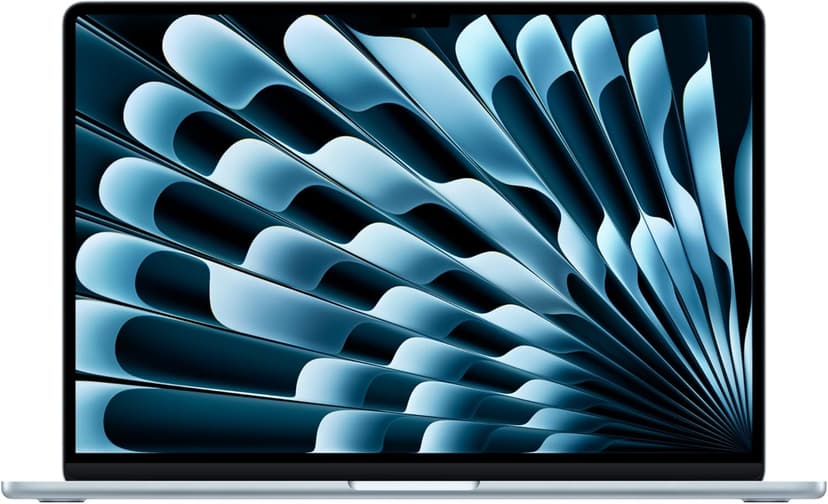
MacBook Air 15" (M4)
Selected configuration
Pros
- 10-core M4 CPU
- Fanless design
- 15.3-inch display — plenty of screen real estate
- Two Thunderbolt 4 ports
Cons
- 16GB memory in this offer; select a different configuration if you need more
- No NVIDIA CUDA support; check your ML framework
Best for: Developers comparing a fanless machine for everyday projects.
Check configuration & price on Amazon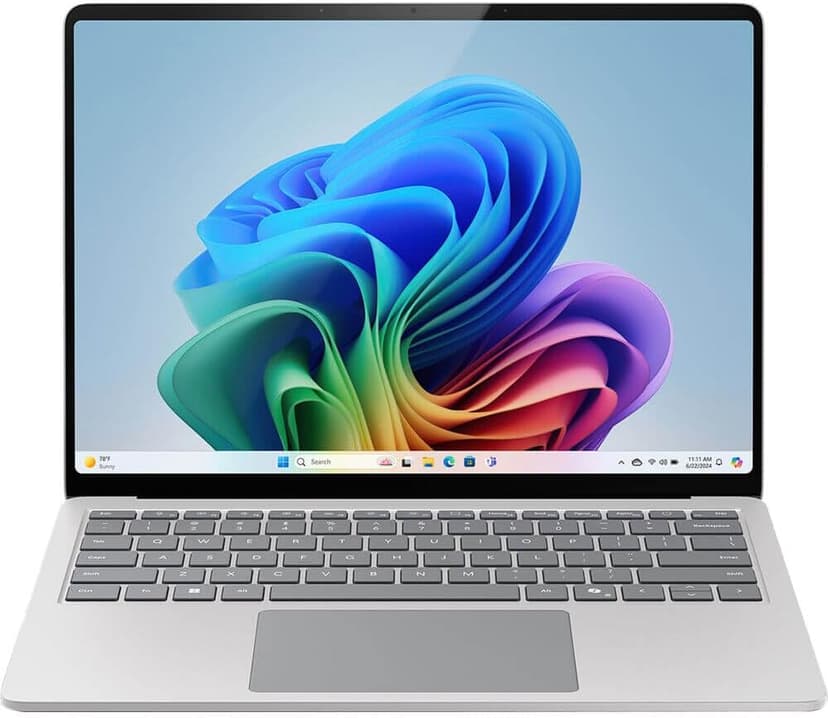
Microsoft Surface Laptop 7
Selected configuration
Pros
- Check application support on Windows ARM
- 45 TOPS NPU for on-device AI acceleration
- Premium build quality with gorgeous PixelSense display
- Compact design for portable work
Cons
- ARM architecture has some developer tool compatibility gaps
- 13.8-inch screen is small for multi-pane workflows
Best for: Users whose applications support Windows on ARM and who want a compact Copilot+ PC.
Check configuration & price on Amazon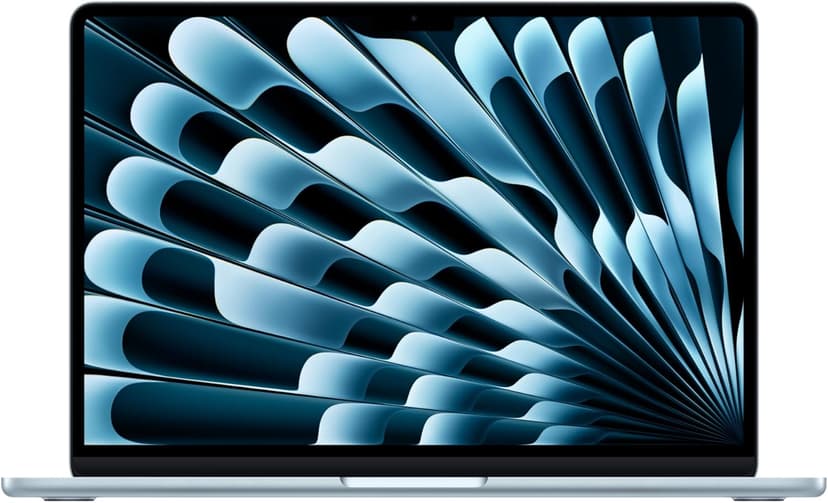
MacBook Air 13" (M4)
Selected configuration
Pros
- Compact 13.6-inch display
- Ultra-portable at 2.7 lbs
- Fanless and completely silent
- Two Thunderbolt 4 ports
Cons
- 13.6-inch screen can feel cramped for multi-pane coding
- 16GB memory in this offer; select a different configuration if you need more
Best for: Students, side-project builders, and anyone starting their coding journey.
Check configuration & price on Amazon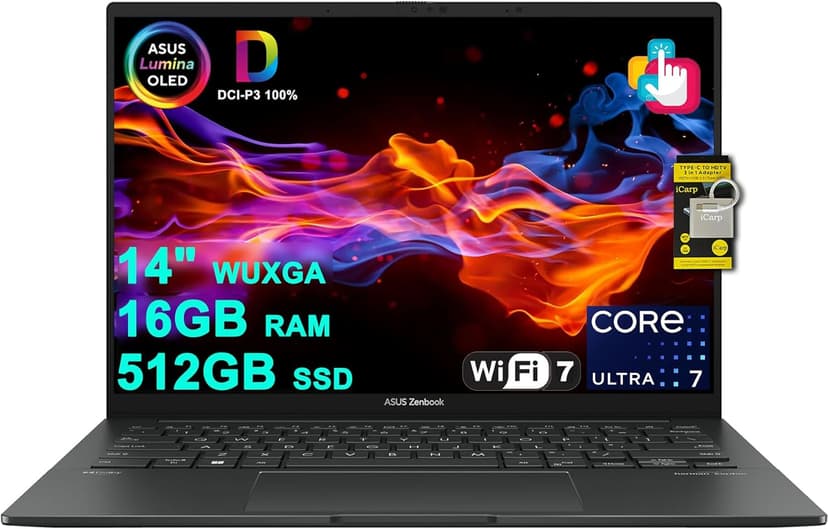
ASUS Zenbook 14 OLED (Core Ultra 7 255H)
Selected configuration
Pros
- 14-inch OLED touchscreen
- 16-core Intel Core Ultra 7 255H
- 16GB RAM and 512GB SSD in this offer
- Thunderbolt 4 connections
Cons
- 16GB RAM is not upgradeable
- No dedicated GPU for heavy compute tasks
Best for: Developers and AI tool users who want a gorgeous OLED display and solid performance without breaking the bank.
Check configuration & price on Amazon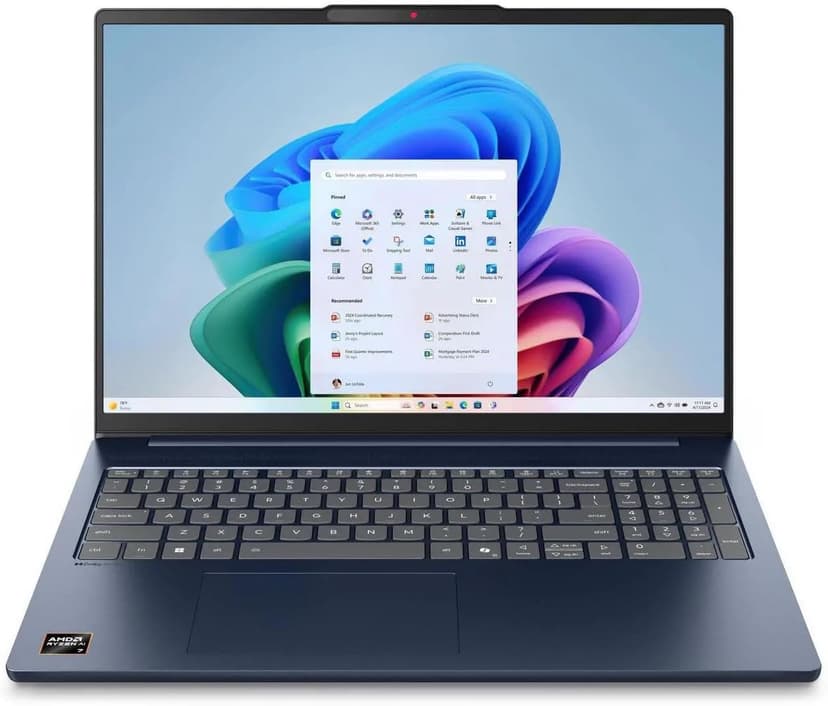
Lenovo IdeaPad Slim 5 16
Selected configuration
Pros
- 16-inch Windows option for budget comparisons
- 16GB DDR5 RAM with Ryzen AI 7 processor
- Large display gives you room to work
- Wi-Fi 7 connectivity
Cons
- IPS display — not as vibrant as OLED options
- Heavier and thicker than premium ultrabooks
Best for: Students and budget-focused developers who want the most screen real estate and RAM per dollar.
Check configuration & price on AmazonCompare configurations
| Laptop | RAM | Cores | Screen | Weight | Current offer |
|---|---|---|---|---|---|
| MacBook Air 15" (M4) | 16GB | 10 cores | 15.3" 2880x1864 | 3.3 lbs | Check Amazon |
| Microsoft Surface Laptop 7 | 16GB | 10 cores | 13.8" 2304x1536 | 2.96 lbs | Check Amazon |
| MacBook Air 13" (M4) | 16GB | 10 cores | 13.6" 2560x1664 | 2.7 lbs | Check Amazon |
| ASUS Zenbook 14 OLED (Core Ultra 7 255H) | 16GB | 16 cores | 14" 1920x1200 OLED | Approx. 2.7 lbs | Check Amazon |
| Lenovo IdeaPad Slim 5 16 | 16GB | 8 cores | 16" 1920x1200 IPS touch | 4.0 lbs | Check Amazon |
Related guides
Get future buying guides.
Laptop buying advice, coding workflows, and lessons from building software.