By David Khachatryan · Guidance updated
Best Laptops for Claude Code (2026): RAM, Mac vs Windows
Choose a laptop for Claude Code by your actual projects. Understand RAM needs, cloud inference, Mac vs Windows, and when your current machine is enough.
Claude Code does not require a workstation laptop. Its model runs remotely; your computer handles the terminal, project files, and commands the agent executes. A more expensive GPU will not make the remote model respond faster.
Start with the projects you build. A small website, a mobile app with simulators, and several containerized services have different hardware needs. The shortlist below compares existing model generations by those workloads, without claiming hands-on testing.
Top Picks for Claude Code
Read the details or check the current offer
- #1
Everyday web development
- #2
Sustained builds and more memory
- #3
Budget Windows option
The official minimum and a useful buying target are different
Anthropic lists 4GB or more RAM for Claude Code itself. That does not include every application in your development workflow. Our suggested buying target of 16GB for modest projects, or 24–32GB for heavier multitasking, is editorial guidance. Measure your project's memory pressure before paying for more.
MacBook Air, MacBook Pro, or Windows?
An M4 MacBook Air is a candidate for web development when its memory and storage fit your projects. The M4 Pro MacBook Pro is worth comparing for sustained builds and higher memory needs. A Windows laptop can also run Claude Code; check native Windows or WSL requirements and the compatibility of your own toolchain.
What to check when Claude feels slow
Separate waiting for a model response from waiting for a local command. If tests or builds are slow, time those commands directly. If memory pressure stays low while a remote response is pending, extra RAM is unlikely to address that wait. Keep your current machine if it already handles the local work well.
Sources and scope
The recommendations above are editorial judgments based on the requirements and specifications below. They are not measured performance results.
Before you buy
- Try your current laptop with a representative project before replacing it.
- Treat 16GB as a buying starting point for a modest development setup, not Claude Code's official minimum. Consider 24–32GB when your measured workload needs more headroom.
- Check the seller's exact RAM and SSD configuration; model names alone do not identify a configuration.
- Put a higher-memory MacBook Pro on the shortlist only when your builds, containers, or local models justify it.
Laptop shortlist for Claude Code
Compare the named model generations below. This shortlist does not cover every current release. The same model name can refer to different configurations; confirm the specifications on the seller's listing.
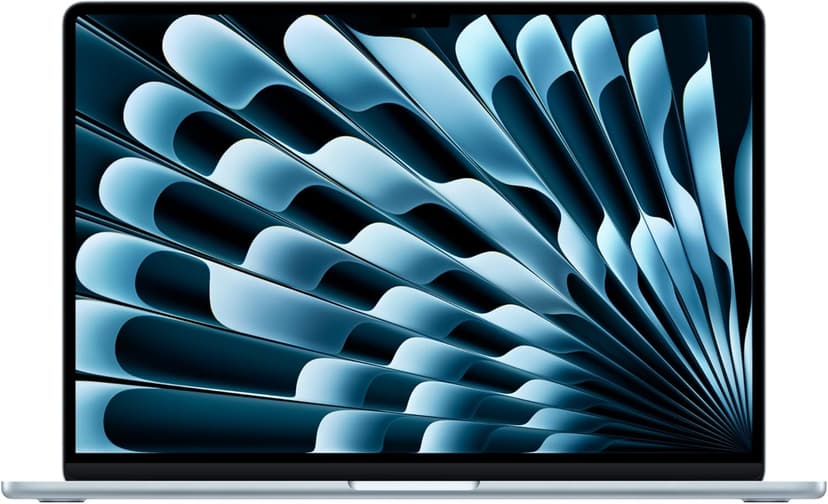
MacBook Air 15" (M4)
Selected configuration
Pros
- 10-core M4 CPU
- Fanless design
- 15.3-inch display — plenty of screen real estate
- Two Thunderbolt 4 ports
Cons
- 16GB memory in this offer; select a different configuration if you need more
- No NVIDIA CUDA support; check your ML framework
Best for: Developers comparing a fanless machine for everyday projects.
Check configuration & price on Amazon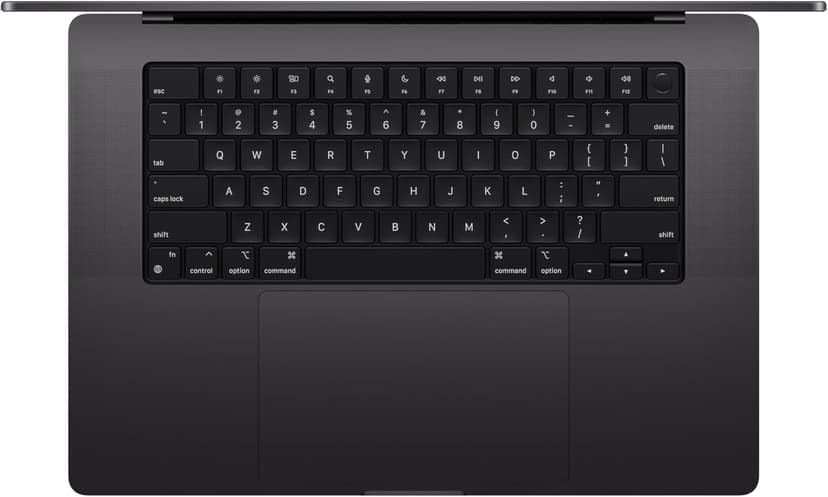
MacBook Pro 14" (M4 Pro)
Selected configuration
Pros
- 14-inch design weighing approximately 3.5 lbs
- M4 Pro with a 12-core CPU in this configuration
- Liquid Retina XDR display with ProMotion
- Active cooling for extended workloads
- Three Thunderbolt 5 ports plus HDMI and SD card
Cons
- Premium model; compare the current offer
- 14-inch screen can feel cramped for multi-pane coding
Best for: Developers considering active cooling and a 14-inch display for local builds.
Check configuration & price on Amazon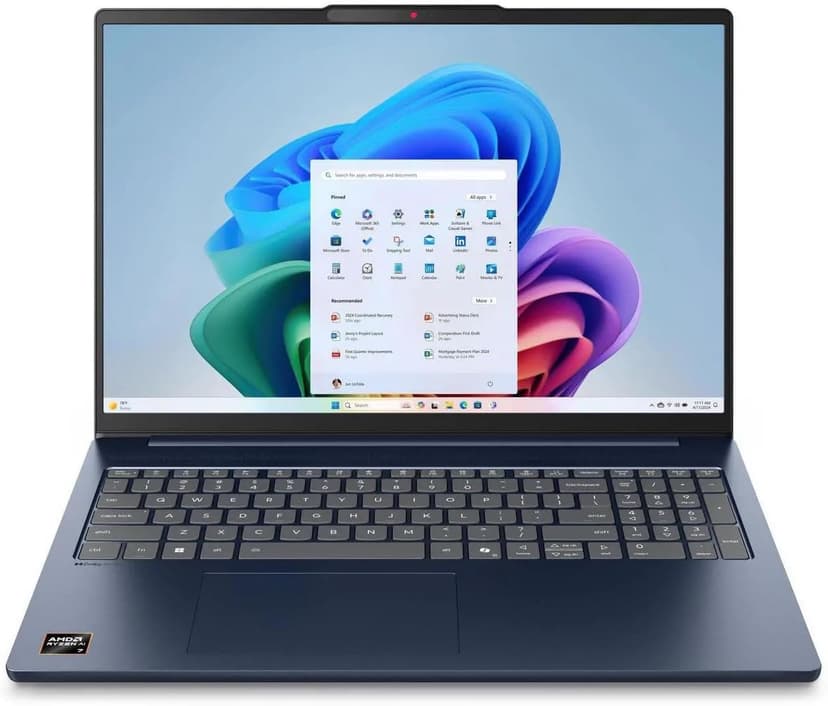
Lenovo IdeaPad Slim 5 16
Selected configuration
Pros
- 16-inch Windows option for budget comparisons
- 16GB DDR5 RAM with Ryzen AI 7 processor
- Large display gives you room to work
- Wi-Fi 7 connectivity
Cons
- IPS display — not as vibrant as OLED options
- Heavier and thicker than premium ultrabooks
Best for: Students and budget-focused developers who want the most screen real estate and RAM per dollar.
Check configuration & price on Amazon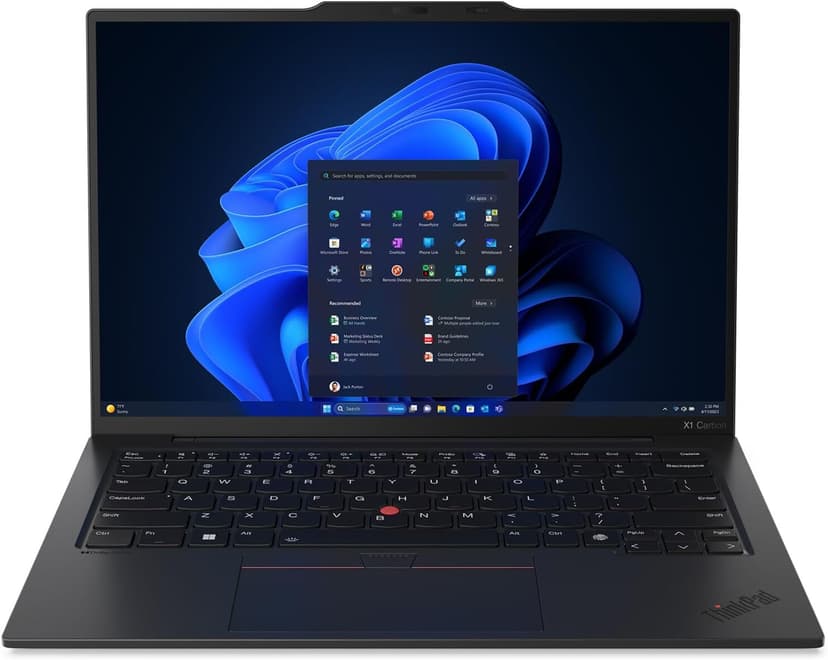
Lenovo ThinkPad X1 Carbon Gen 13
Selected configuration
Pros
- Incredibly light at 2.4 lbs — one of the lightest in this list
- ThinkPad keyboard layout; try the feel before buying
- Check Linux certification for the exact model number
- 32GB RAM + 2TB SSD in an ultrabook form factor
- Aura Edition with Intel Core Ultra 7 258V
Cons
- Integrated graphics; no discrete NVIDIA GPU
- 14-inch screen is smaller than 16-inch alternatives
Best for: Developers comparing a compact travel laptop; verify Linux support for the exact configuration if needed.
Check configuration & price on AmazonCompare configurations
| Laptop | RAM | Cores | Screen | Weight | Current offer |
|---|---|---|---|---|---|
| MacBook Air 15" (M4) | 16GB | 10 cores | 15.3" 2880x1864 | 3.3 lbs | Check Amazon |
| MacBook Pro 14" (M4 Pro) | 24GB | 12 cores | 14.2" 3024x1964 | 3.5 lbs | Check Amazon |
| Lenovo IdeaPad Slim 5 16 | 16GB | 8 cores | 16" 1920x1200 IPS touch | 4.0 lbs | Check Amazon |
| Lenovo ThinkPad X1 Carbon Gen 13 | 32GB | 8 cores | 14" 2880x1800 OLED | 2.4 lbs | Check Amazon |
Frequently Asked Questions About Claude Code
Does Claude Code need 32GB of RAM?
No. Anthropic lists 4GB or more for the tool itself. A full development environment may benefit from more memory, depending on projects, containers, simulators, and parallel work. Choose capacity for that workload.
Do I need a dedicated GPU for Claude Code?
Not for its normal cloud model connection. A dedicated GPU matters only for other workloads you run locally, such as supported local models, rendering, or GPU compute.
Can I use my existing laptop?
Yes, if it meets the supported system requirements and runs your project comfortably. Test your normal workflow first; upgrading hardware is not required just because you start using an AI coding agent.
Related guides
Get future buying guides.
Laptop buying advice, coding workflows, and lessons from building software.