By David Khachatryan · Guidance updated
Best Laptops for Ollama (2026): GPU Support and Memory
Choose an Ollama laptop by supported GPU backend, model size, context, and memory. Learn what to verify before buying a Mac or Windows laptop.
For Ollama, start with GPU compatibility and the model you want to run. Then decide how much memory remains for context, the operating system, and your other applications.
The laptop shortlist below is a specification-based comparison. We have not benchmarked these machines. Use Ollama's hardware and context documentation to check your intended configuration.
Top Picks for Ollama
Read the details or check the current offer
- #1
Best Dedicated GPU
- #2
Best Unified Memory for AI
- #3
Best Windows Workstation
Model weights are only part of the memory budget
A rough lower-bound calculation for weights is parameters multiplied by bits per parameter, divided by eight. For example, 8 billion parameters at 4 bits gives about 4GB before metadata and runtime overhead. Context, caches, and other applications require additional memory. Do not use the weight-file size alone as a purchase specification.
Apple Silicon versus a discrete NVIDIA GPU
Ollama documents Metal acceleration on Apple Silicon and GPU support for compatible NVIDIA hardware. On a Mac, unified memory is shared with the system. On a Windows or Linux laptop with a discrete GPU, verify VRAM separately. Neither architecture guarantees that a particular model will fit or run at a useful speed.
Ask for the exact configuration
The RTX family name alone is insufficient: laptop GPUs can differ in VRAM and power limits. Likewise, a MacBook Pro Max listing may have much less memory than the maximum supported by that family. Request a model number and inspect the actual listing. We have no measured tokens-per-second results to use as a ranking claim.
Sources and scope
The recommendations above are editorial judgments based on the requirements and specifications below. They are not measured performance results.
Before you buy
- Identify the exact model, quantization, and context length you want to use.
- Check dedicated GPU VRAM separately from system RAM. A larger system-memory number does not mean that memory is all available at GPU speed.
- Verify that your runtime supports the exact GPU and operating system.
- Test your intended workload before committing to a high-memory laptop; a desktop or remote service may be more practical.
Laptop shortlist for Ollama
Compare the named model generations below. This shortlist does not cover every current release. The same model name can refer to different configurations; confirm the specifications on the seller's listing.
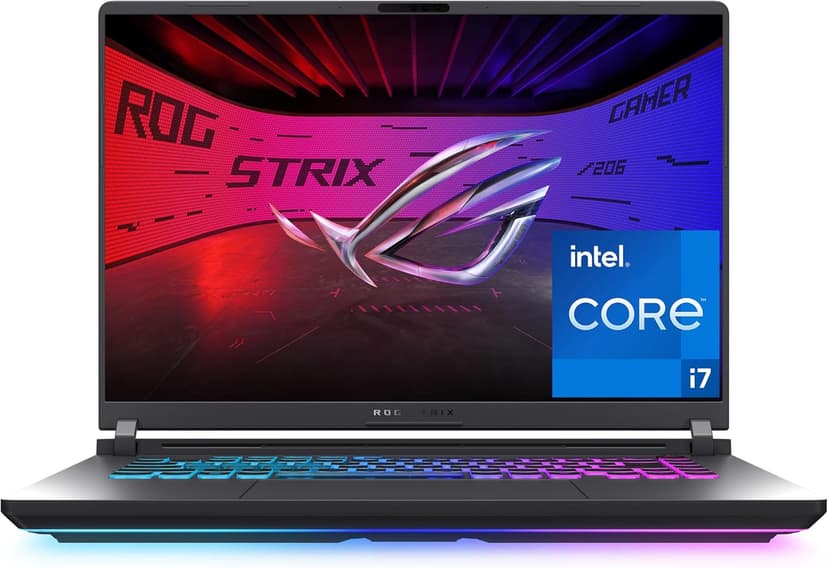
ASUS ROG Strix G16 (RTX 5060)
Selected configuration
Pros
- RTX 5060 GPU — next-gen NVIDIA for ML and AI workloads
- 16-inch 165Hz display — great for coding and gaming
- Dedicated GPU for compatible compute workloads
- 16 cores / 24 threads for fast compilation and builds
Cons
- 16GB RAM limits large model training
- Heavier at 5.8 lbs — not ultraportable
Best for: Machine learning engineers, data scientists, and anyone who needs dedicated GPU power for local model training or AI image generation.
Check configuration & price on Amazon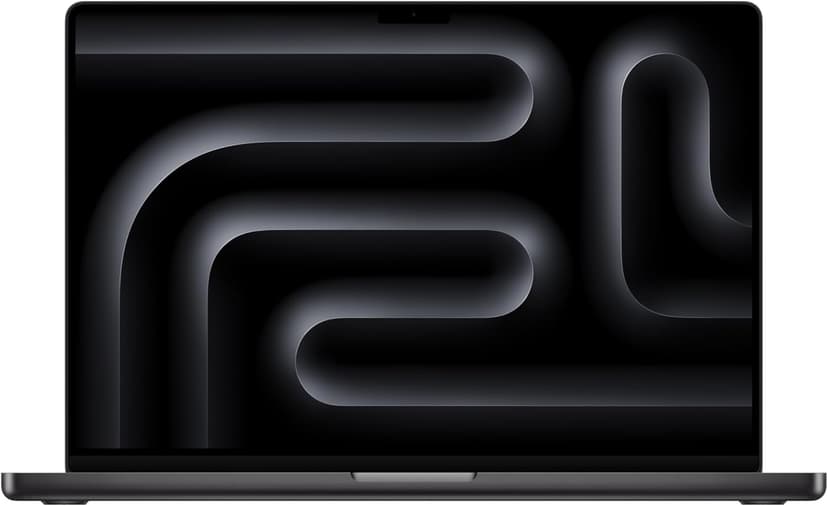
MacBook Pro 16" (M4 Max)
Selected configuration
Pros
- 36GB unified memory in this configuration
- 14-core CPU and 32-core GPU
- HDMI and SDXC connections built in
- Active cooling for sustained workloads
- Liquid Retina XDR display
Cons
- 36GB in this offer; higher-memory versions are separate configurations
- Large chassis for everyday travel
Best for: Developers comparing higher-memory configurations for local workloads that support Apple silicon.
Check configuration & price on Amazon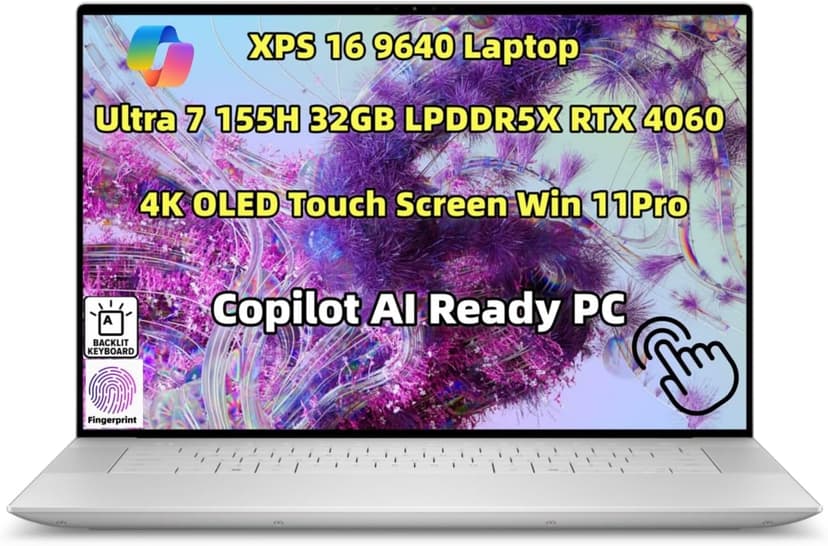
Dell XPS 16 (9640)
Selected configuration
Pros
- 16.3-inch 3840x2400 OLED touchscreen
- 32GB onboard RAM in the selected configuration
- NVIDIA RTX 4060 with 8GB dedicated memory
- Thunderbolt 4 connectivity
Cons
- Premium model; compare the current offer
- Onboard RAM cannot be upgraded
Best for: Windows developers, ML engineers, and anyone who needs a dedicated GPU alongside serious coding power.
Check configuration & price on Amazon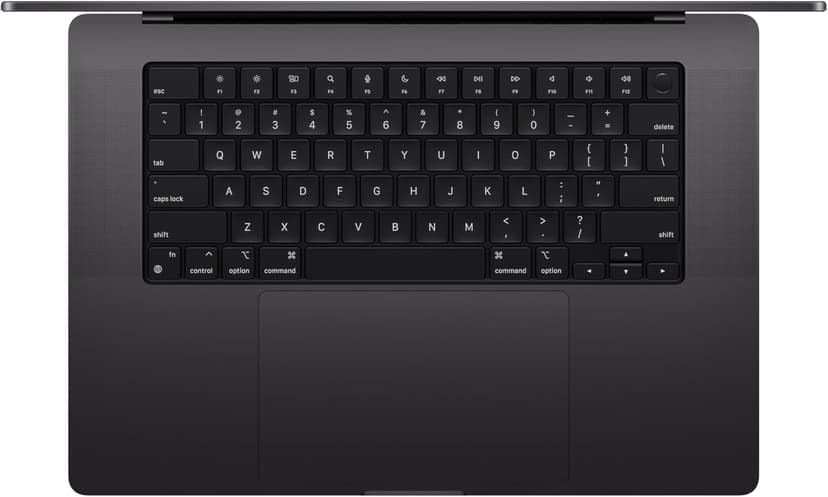
MacBook Pro 14" (M4 Pro)
Selected configuration
Pros
- 14-inch design weighing approximately 3.5 lbs
- M4 Pro with a 12-core CPU in this configuration
- Liquid Retina XDR display with ProMotion
- Active cooling for extended workloads
- Three Thunderbolt 5 ports plus HDMI and SD card
Cons
- Premium model; compare the current offer
- 14-inch screen can feel cramped for multi-pane coding
Best for: Developers considering active cooling and a 14-inch display for local builds.
Check configuration & price on Amazon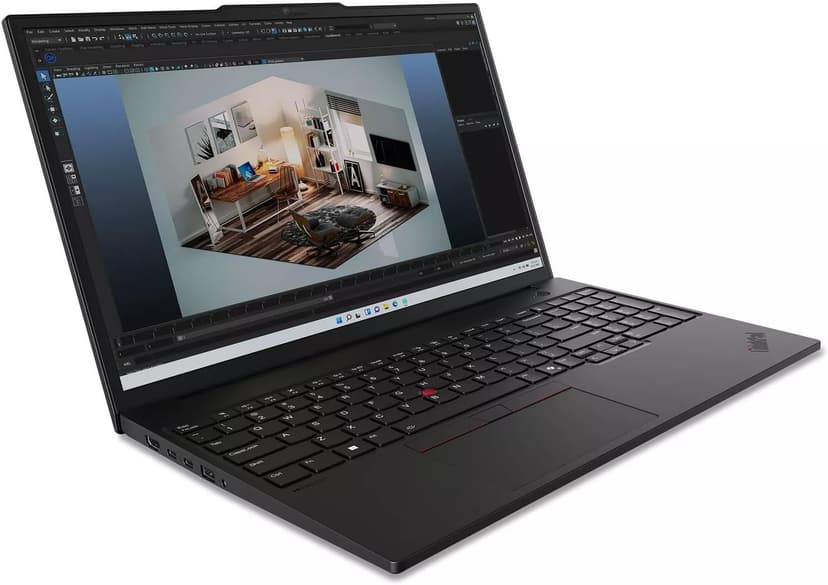
Lenovo ThinkPad P16s Gen 3
Selected configuration
Pros
- 64GB RAM and 2TB SSD in this seller-upgraded configuration
- Two DDR5 memory slots
- Ethernet, HDMI, and Thunderbolt 4 connections
- NVIDIA RTX 500 Ada graphics
Cons
- RTX 500 Ada has 4GB VRAM; check whether your model fits
- 1920x1200 IPS display in this offer, not the OLED option
Best for: Developers comparing expandable memory for containers, virtual machines, and compatible local workloads.
This listing describes a computer opened and resealed by the seller to upgrade RAM and SSD. Check the separate seller and manufacturer warranty terms before buying.
Check configuration & price on AmazonCompare configurations
| Laptop | RAM | Cores | Screen | Weight | Current offer |
|---|---|---|---|---|---|
| ASUS ROG Strix G16 (RTX 5060) | 16GB | 16 cores / 24 threads | 16" 1920x1200 165Hz | 5.8 lbs | Check Amazon |
| MacBook Pro 16" (M4 Max) | 36GB | 14 cores | 16.2" 3456x2234 | 4.7 lbs | Check Amazon |
| Dell XPS 16 (9640) | 32GB | 16 cores | 16.3" 3840x2400 OLED | 4.8 lbs | Check Amazon |
| MacBook Pro 14" (M4 Pro) | 24GB | 12 cores | 14.2" 3024x1964 | 3.5 lbs | Check Amazon |
| Lenovo ThinkPad P16s Gen 3 | 64GB | 16 cores | 16" 1920x1200 IPS | Approx. 4.0 lbs | Check Amazon |
Frequently Asked Questions About Ollama
Can a laptop run a local LLM?
Yes, if the runtime supports its hardware and there is enough memory for the chosen model and context. Being able to load a model does not guarantee a satisfactory generation speed.
How much memory does a local model need?
It depends on parameter count, quantization, context length, runtime overhead, and concurrency. Estimate model-weight storage first, then allow room for caches, the operating system, and other applications.
Does Ollama use the Apple Neural Engine?
Ollama's documented Apple Silicon GPU backend is Metal. Do not buy a Mac based on Neural Engine marketing numbers as a proxy for Ollama performance.
Related guides
Get future buying guides.
Laptop buying advice, coding workflows, and lessons from building software.